
Understanding How the Module Connects to Mobile Networks
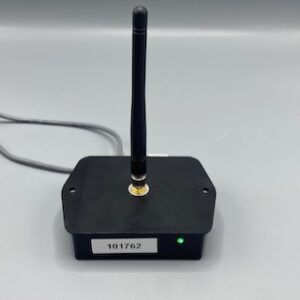
Once the misting unit and iMist3 module have power, the green LED on the module will begin flashing. This LED has 2 different modes that correlate with a state of connection:
- Fast flashing = Searching
- The iMist3 module is searching for a suitable mobile tower to connect to.
- Slow flashing = Latched
- The iMist3 module has latched to a mobile network.
- In general, this process takes between 1-5 minutes.
Add Customer from App
- Login to the iMistAway App.
- Tap on the “Customers” icon at the bottom of the screen.
- Tap “+” in upper right to add a new customer.
- Input Customer Information and then tap “Save”.
Associate iMist3 Module with Customer
- Tap “iMist3” icon in bottom of the screen..
- Enter Customer last name and select from list.
- Scan QR Code or type in 8-digit ID from iMist3 module label and select.
- “Gateway Added” screen confirms module has been associated to customer.
- Tap “Gateway Manager” button.
Check Connection and Test Unit
- Tap “Units” icon at the bottom of the screen.
- Find for the newly connected unit by searching for the customer’s name.
- Check Connection status of unit and run a test mist.
Send Invitation Email to Customer
- Tap on the “Customers” icon at the bottom of the screen.
- Search for customer and open their account information by tapping on their name.
- Tap on “Email” to send login invitation.